For Parents
As a parent you see everything that concerns your children: school news, homework, attendance, grades, exams, the weekly timetable, and school services such as payments, uniforms, and bus tracking. Your children are linked to your account by the school — they appear under My children in your profile.
TIP
Screens like Assignments, Learn, Progress, and Schedule have a child selector at the top. If you have more than one child, always check which child is selected before reading the information.
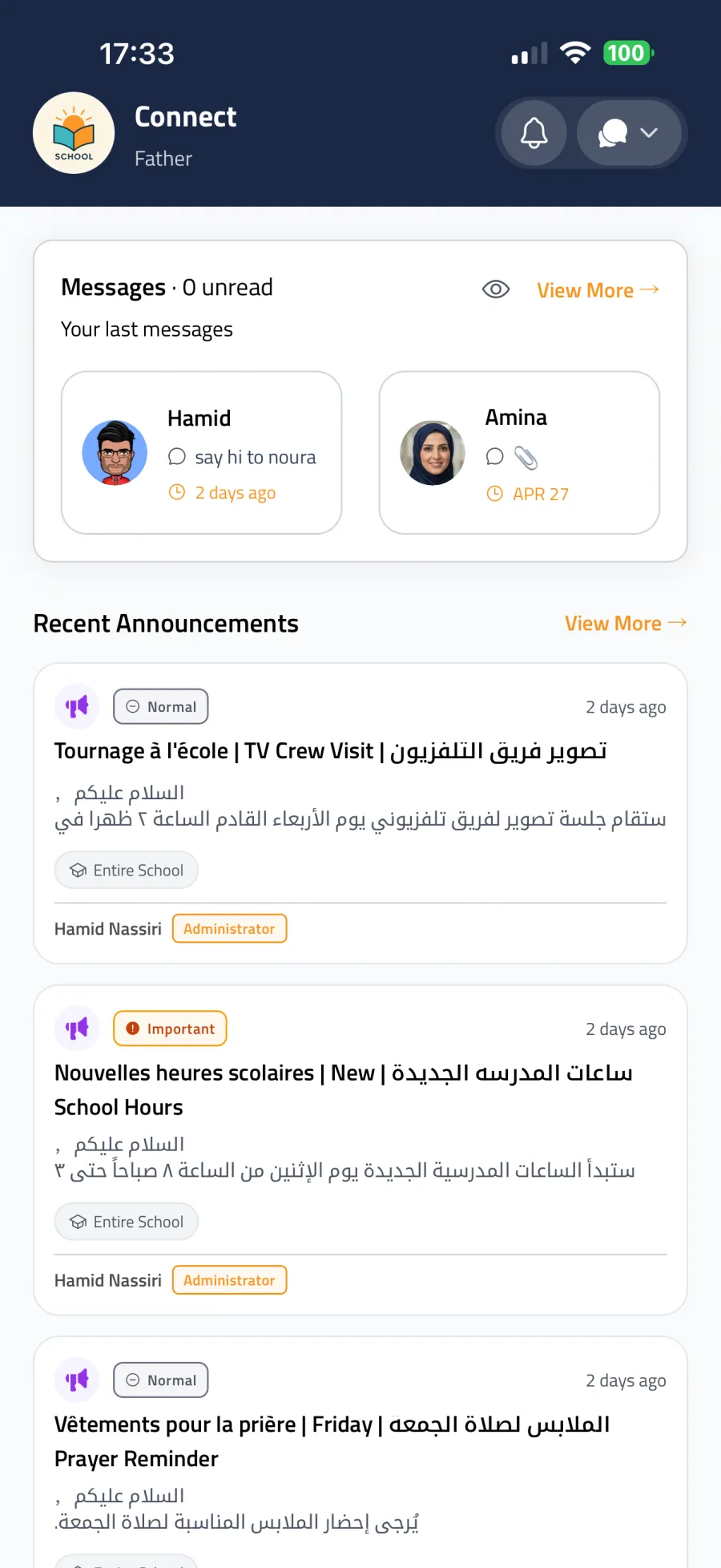
Connect — announcements, events, and messages
The Connect tab is your communication hub with the school.
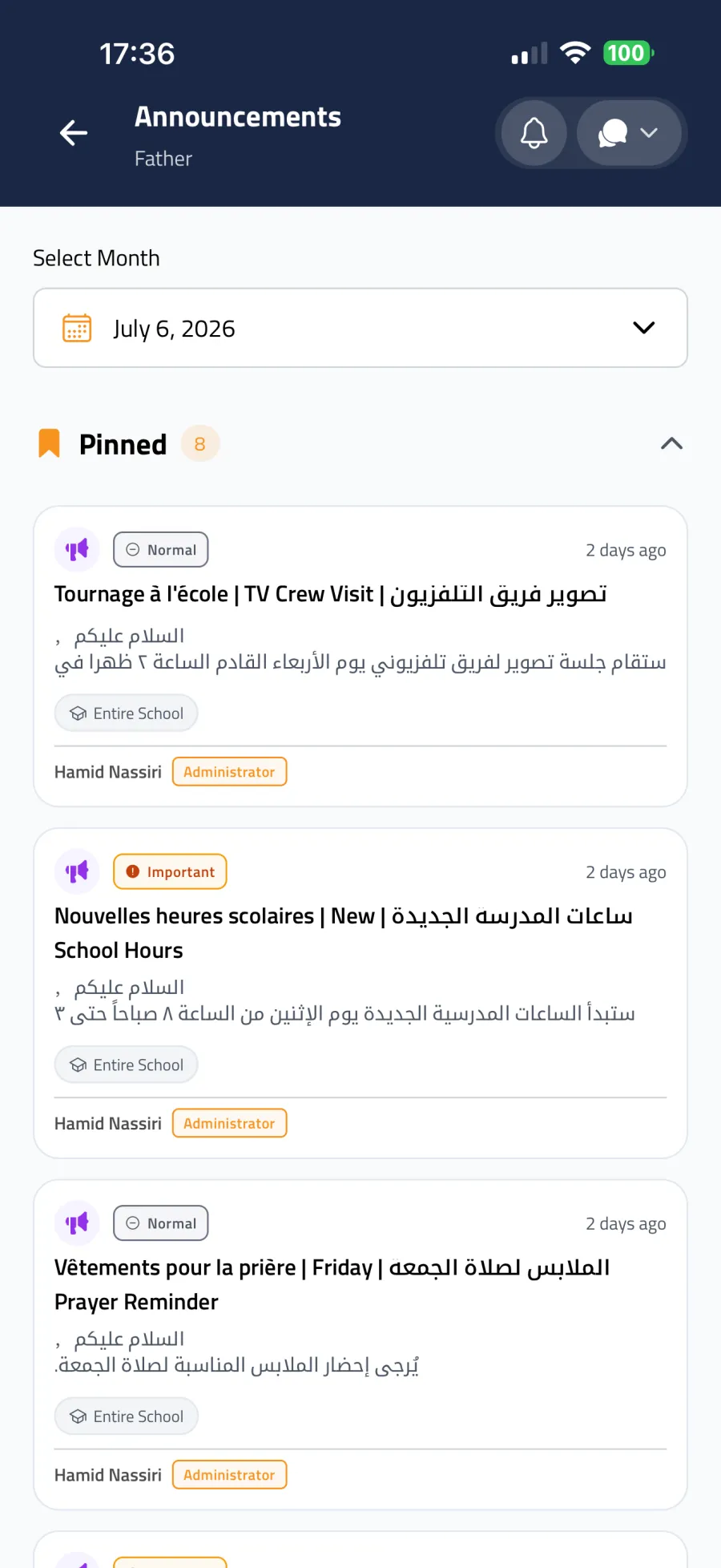
Announcements
School-wide or class-specific news from the administration and teachers. Announcements can carry a priority (Normal, Important, Urgent), attachments, and important ones may be pinned to the top. Browse by month to find older announcements.
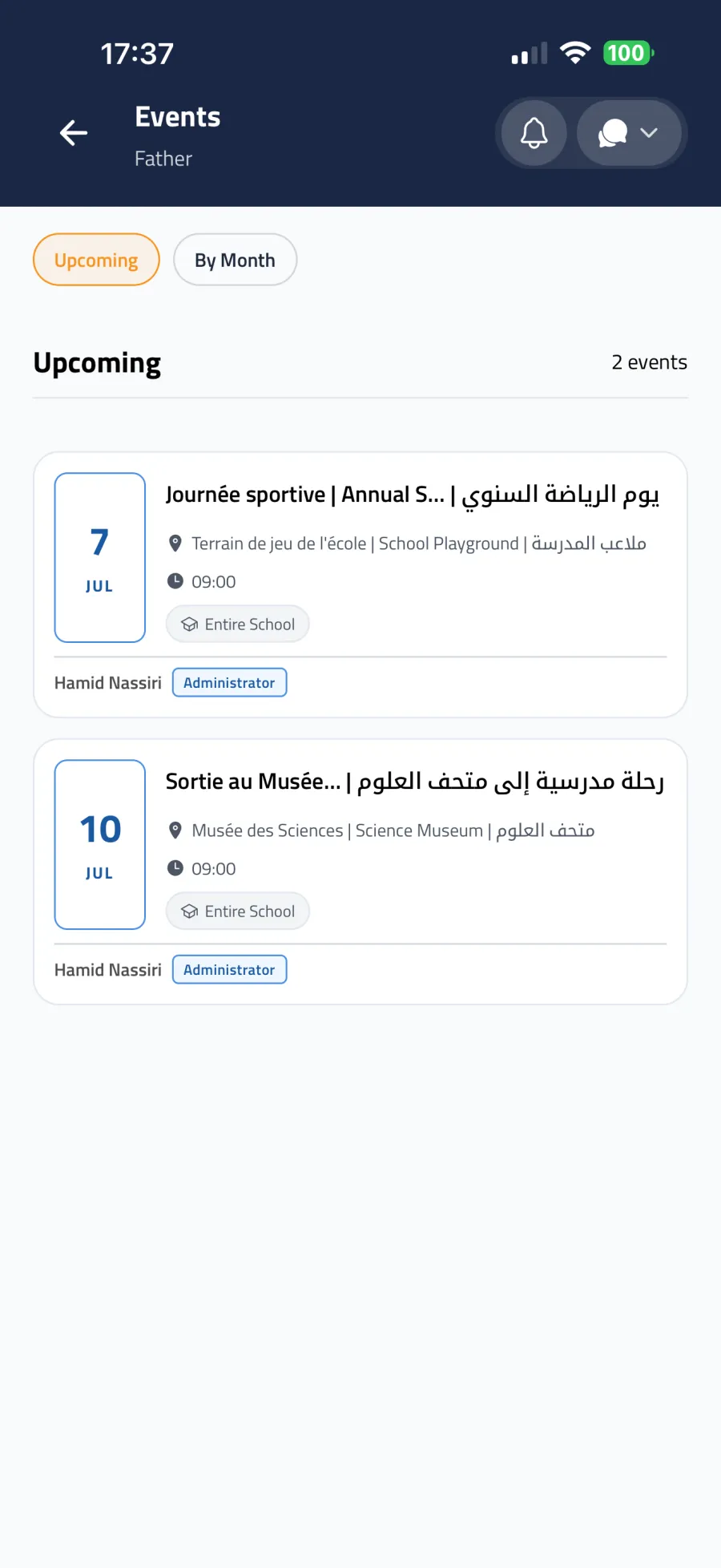
Events
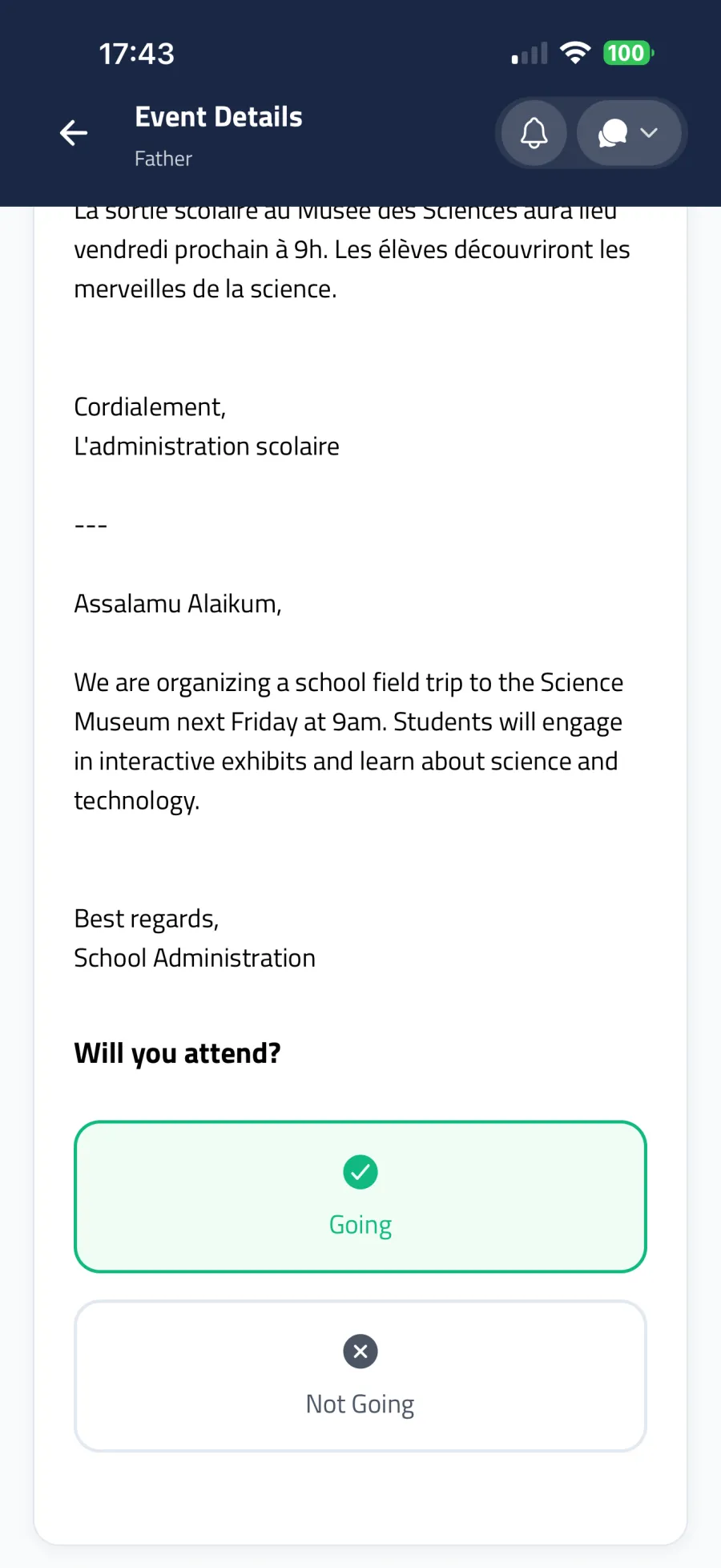
School events — holidays, exams, activities, gatherings — with date, time, location, and description. When RSVP is enabled you can answer Going, Maybe, or Not Going so the school can plan attendance.
Messages
Private conversations with teachers and the administration.
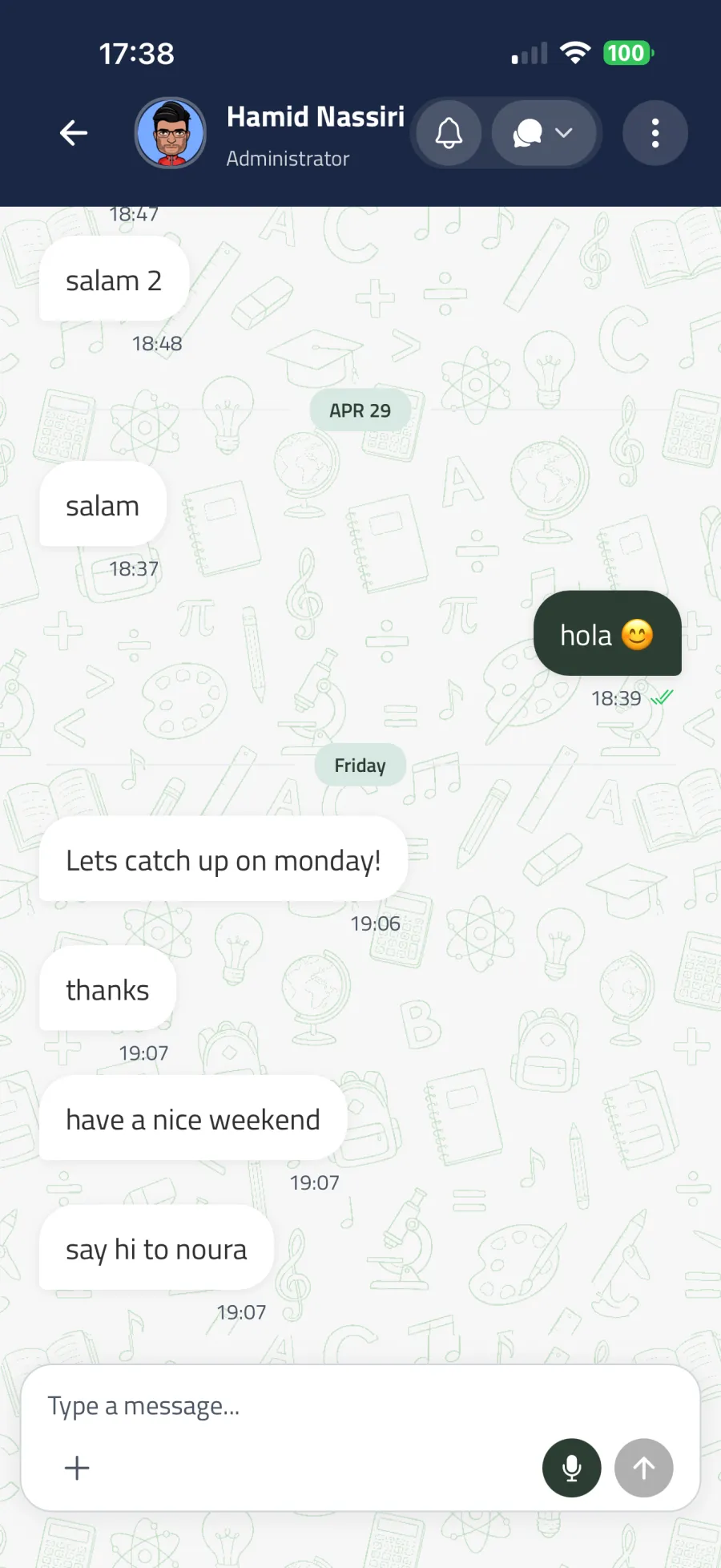
- In Connect → Messages, tap New Message.
- Search for the teacher or staff member and open the conversation.
- Type your message, or attach a photo, document, or a voice message (hold the microphone to record, release to send, slide to cancel).
- Double-tap a message to like it; long-press for more actions: Reply, Copy, Edit, Delete for me, Delete for everyone.
- Finished conversations can be archived; find them under Archived.
- A Files view collects all attachments shared in a conversation.
Note
Whether parents can message teachers directly is a school policy. If the option is unavailable, contact the administration instead — you can always message the admin team.
Assignments (homework)
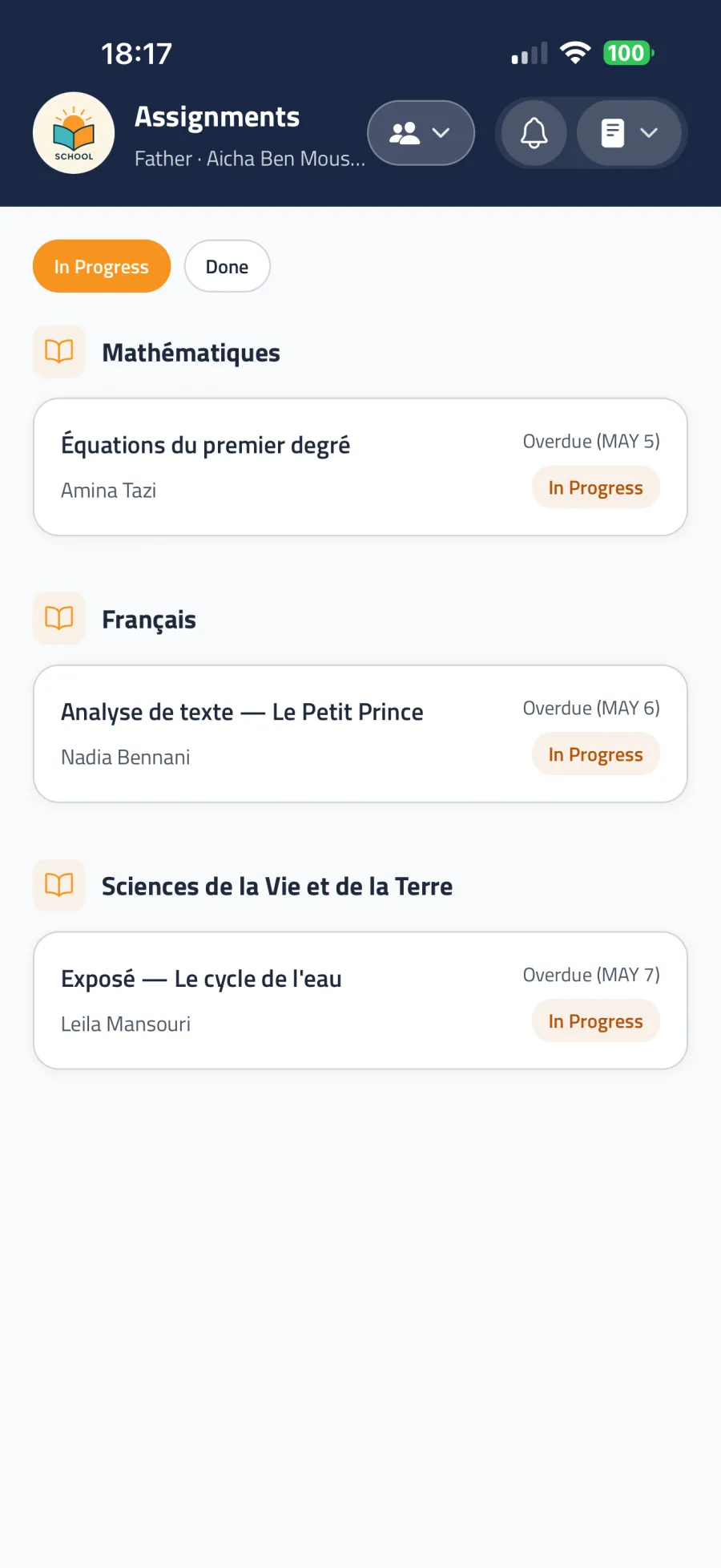
The Assignments tab lists your child's homework with due dates, filtered by All, In Progress, or Done. Open an assignment to see the description, attachments from the teacher, and a comment thread. Depending on the assignment, your child can upload an answer (PDF or image) and mark it Done.
Attendance and reporting an absence
The Attendance tab shows today's status for each child and the attendance history. If your child will be absent, tell the school in advance:
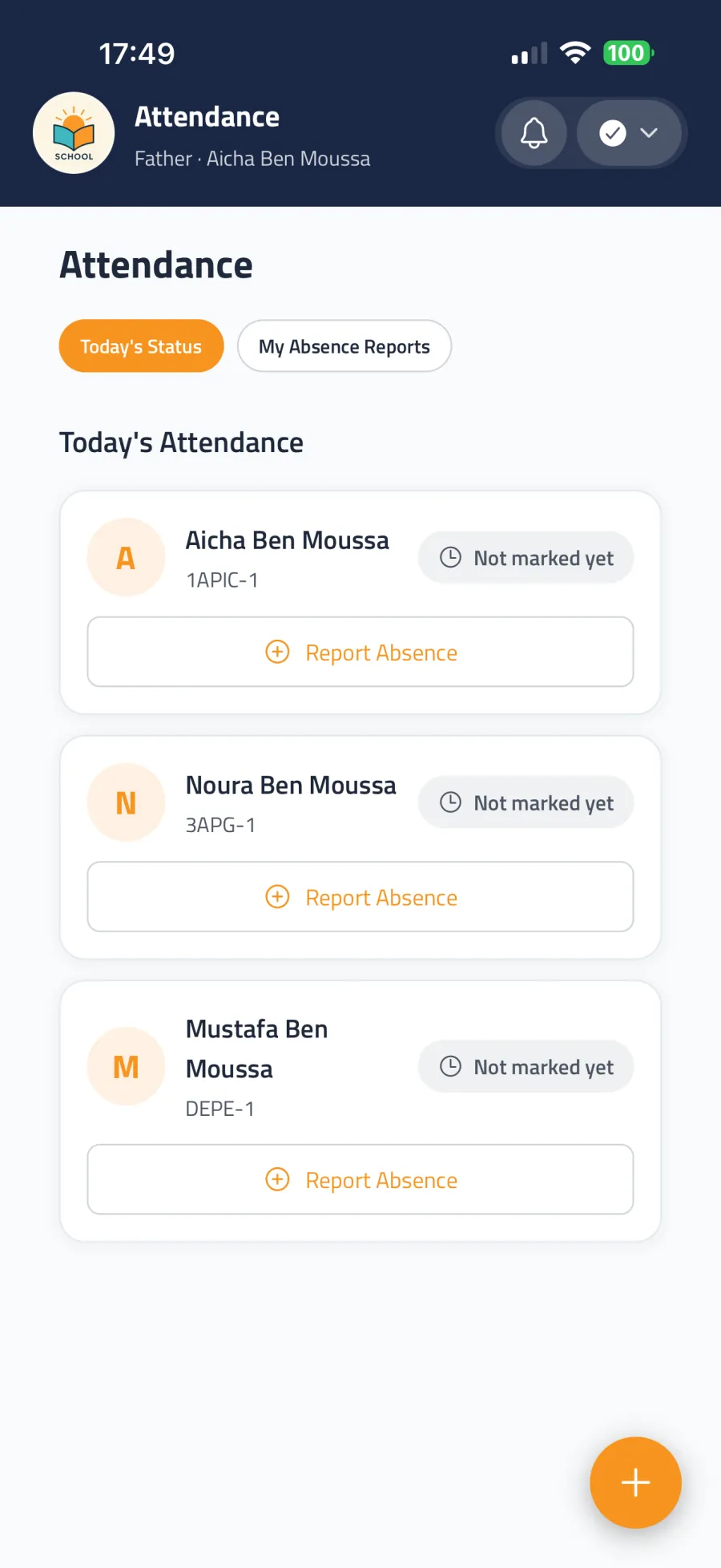
- Open Attendance and tap Report Absence.
- Select the child, then choose Single Day or a Date Range.
- Pick a reason (sick, family matter, appointment, travel, other) and a duration (Full Day, Morning, or Afternoon).
- Add optional notes and tap Submit Report.
Your reports appear under My Absence Reports. You can delete a report as long as the school has not yet marked it as handled. Absences cannot be reported for past dates, and reporting requires an internet connection.
Grades
The Grades tab shows your children's approved grades per grading period, including subject averages and any sub-grades (for example oral and written components). When new grades are published you receive a notification. Tap Acknowledge to confirm to the school that you have reviewed the period's grades.
Exam schedules
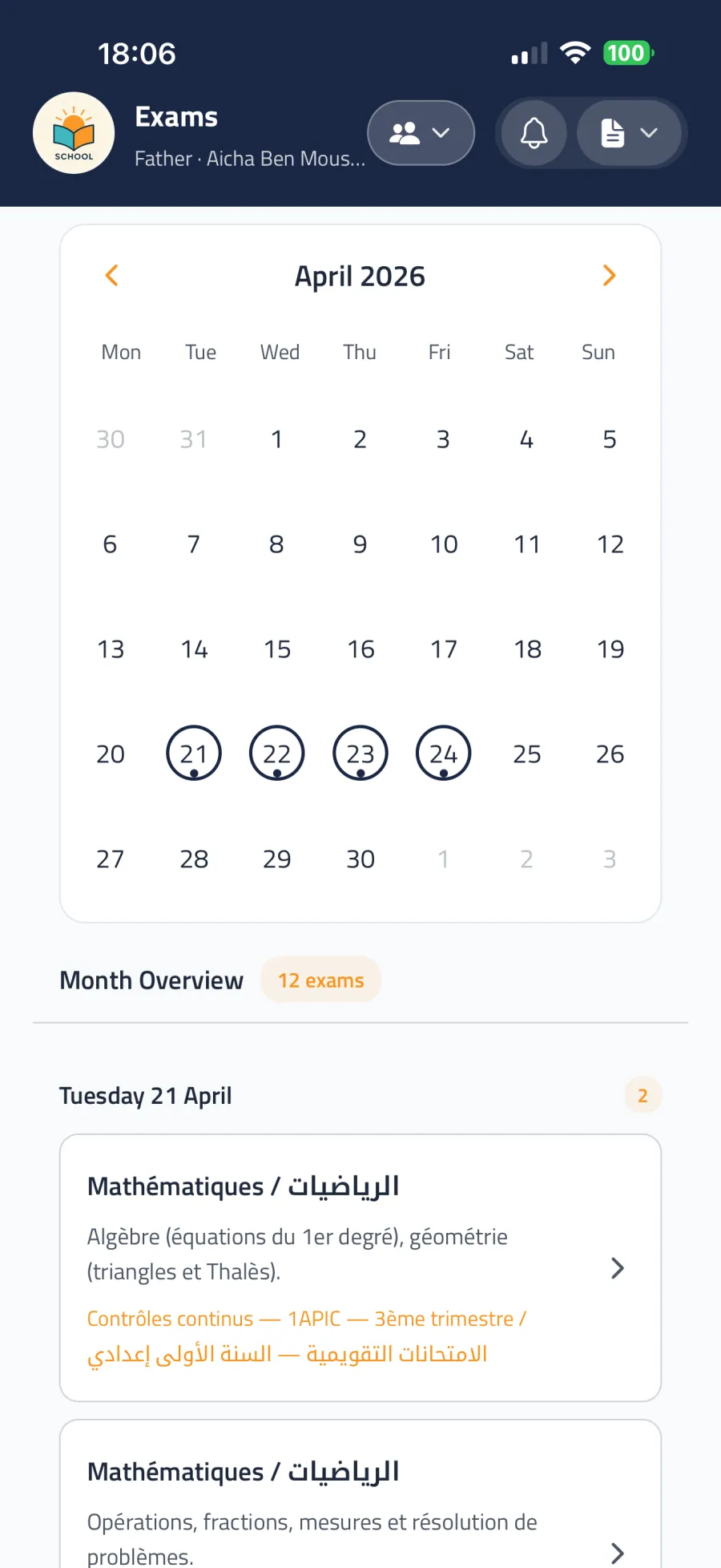
The Exams tab lists published exam schedules for your children — dates, subjects, and the topics that will be covered. Use the Month Overview calendar to see exams at a glance, and Mark as read once reviewed.
Schedule (weekly timetable)
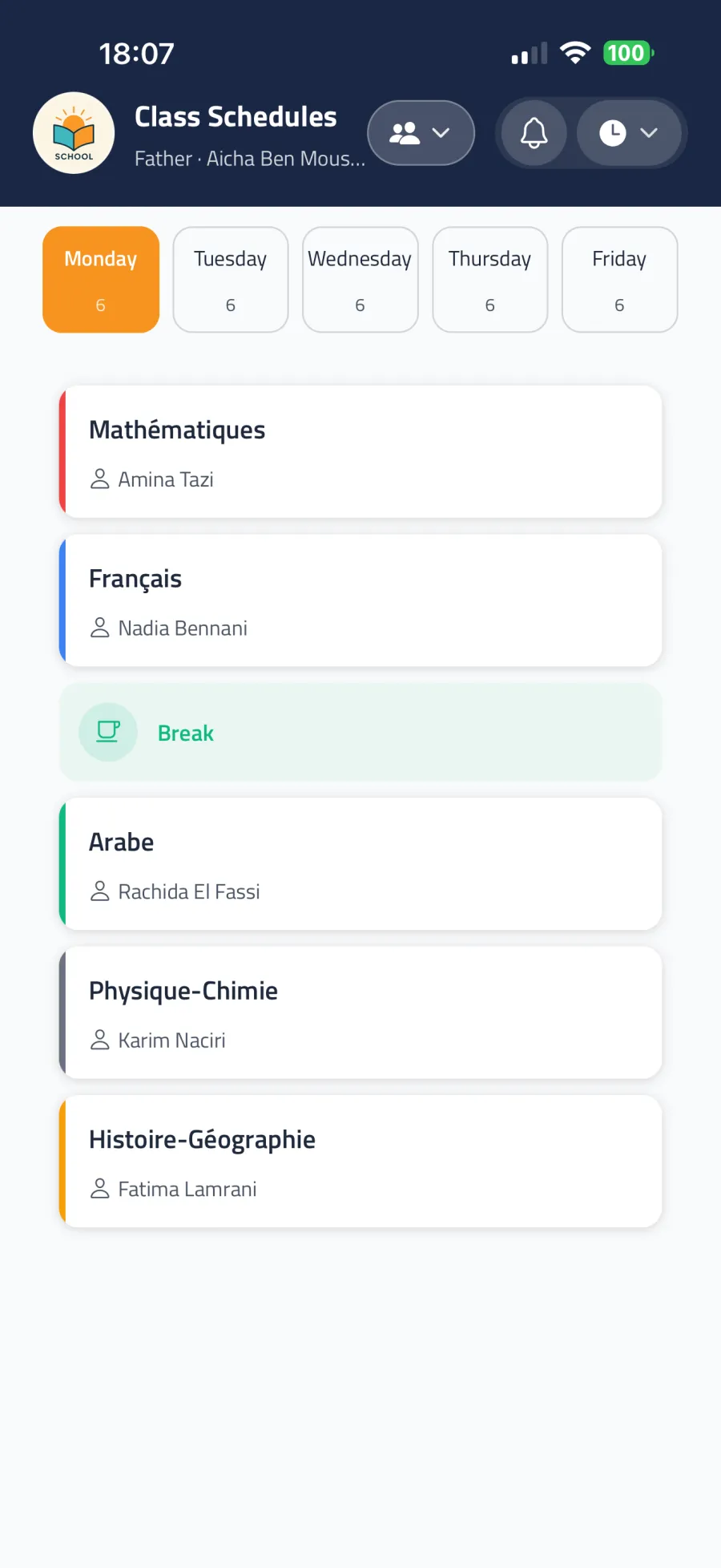
The Schedule tab shows your child's weekly lesson plan day by day, with Now and Next markers during the school day, and breaks clearly indicated. The schedule is cached, so you can consult it even offline.
Note
Some schools choose to show the subject-per-day grid without exact start/end times. This is a school setting, not an error.
Certificates
Request official documents from the school — a school certificate, report card, diploma, or another document.
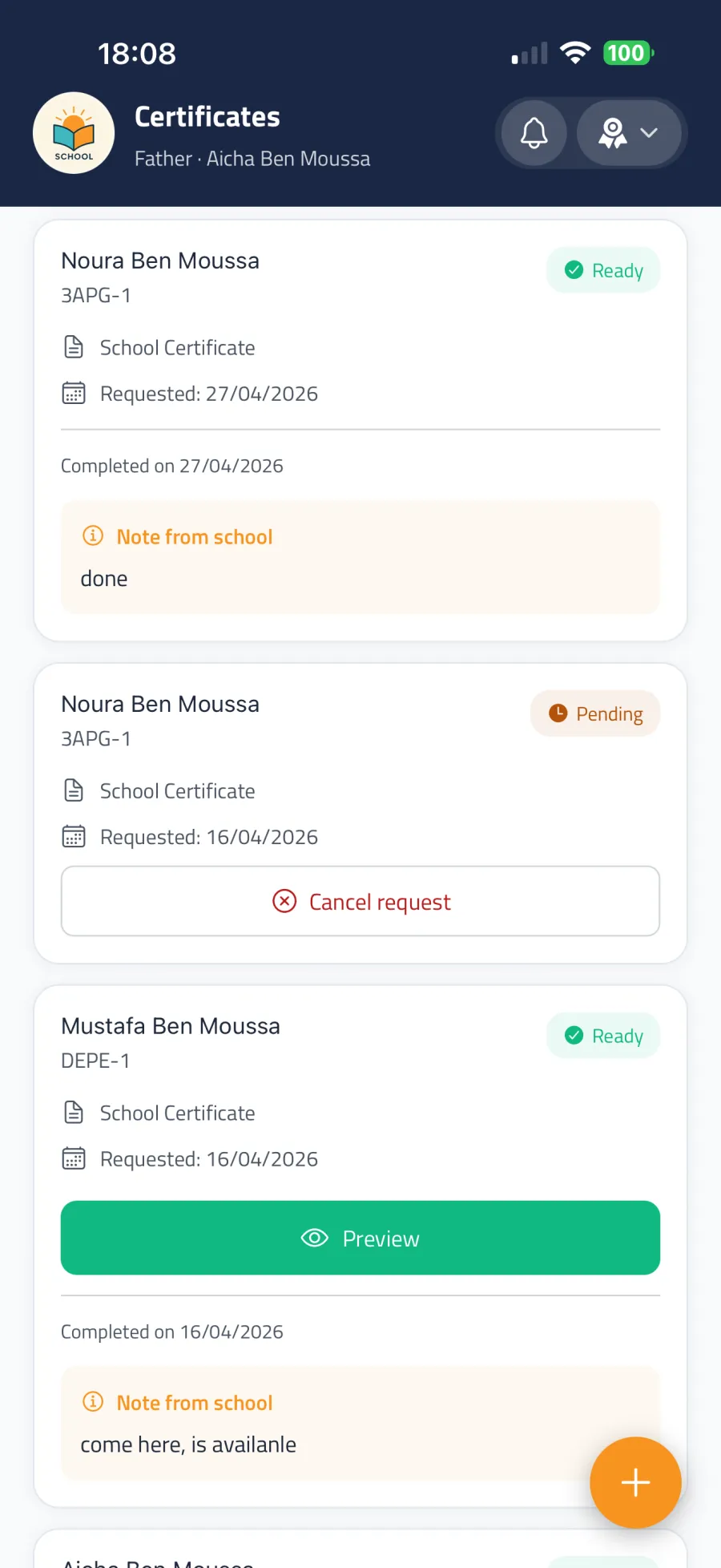
- Open Certificates and tap Request Certificate.
- Select one or more children, the document type, and the date you need it by.
- Submit and track the status: Pending → Ready (download in the app) or Pickup (collect at school; the school's note tells you when).
You can cancel a pending request (a short reason is required). To fix a mistake, cancel and submit a new request.
Complaints
Raise a concern formally with the administration.
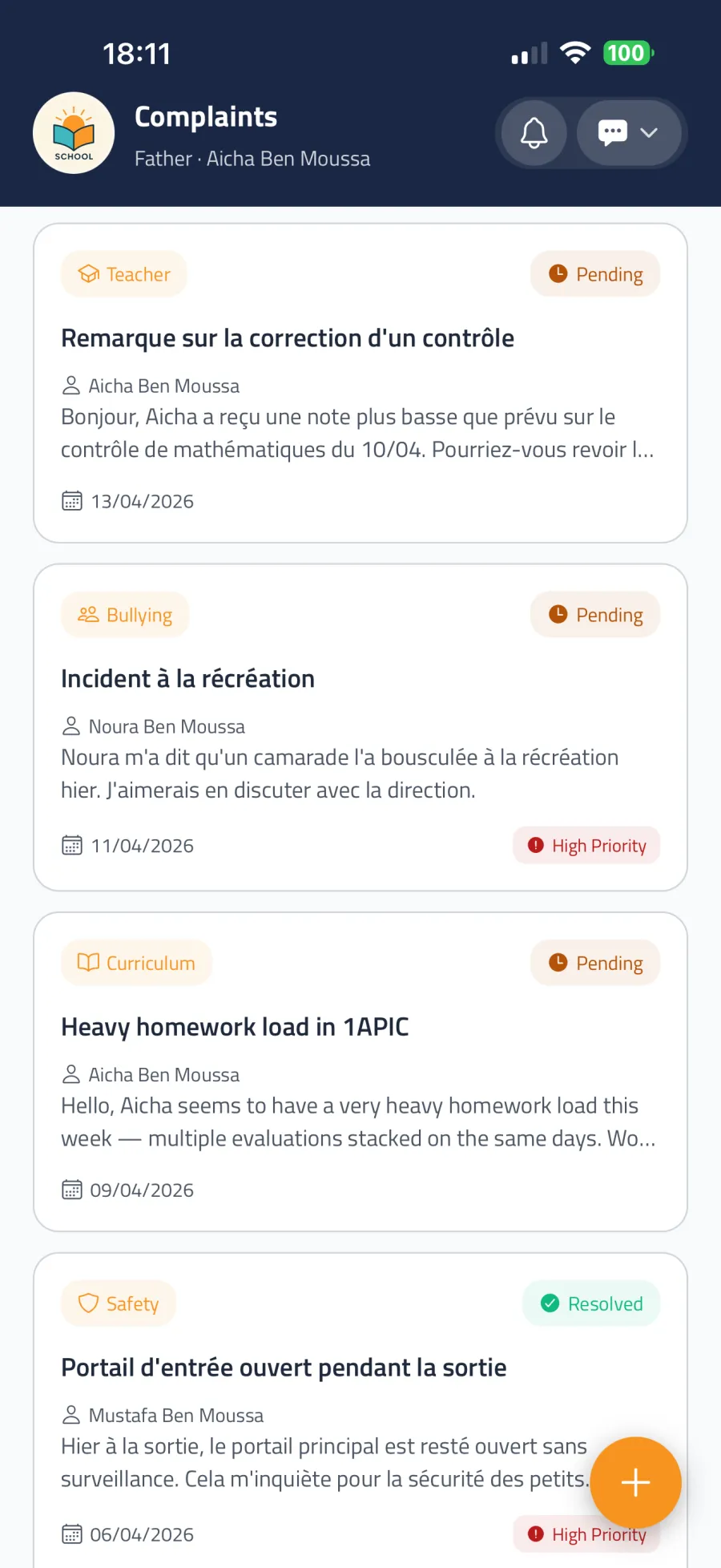
- Open Complaints and tap New Complaint.
- Pick a category (safety, bullying, teacher, transport, facilities, curriculum, administrative, fees, other). Some categories are treated as high priority and reviewed urgently.
- Select the concerned children if relevant, write a subject and description, and optionally attach photos, documents, or a voice recording (voice on mobile only).
- Tap Submit Complaint.
The administration reviews every complaint. Their written response appears in the complaint's detail view, and the status changes to Resolved.
Forms & questionnaires
The school may send you forms — cafeteria enrolment, transport surveys, consent forms, feedback, and more. They appear in the Forms tab split into To fill and Filled.
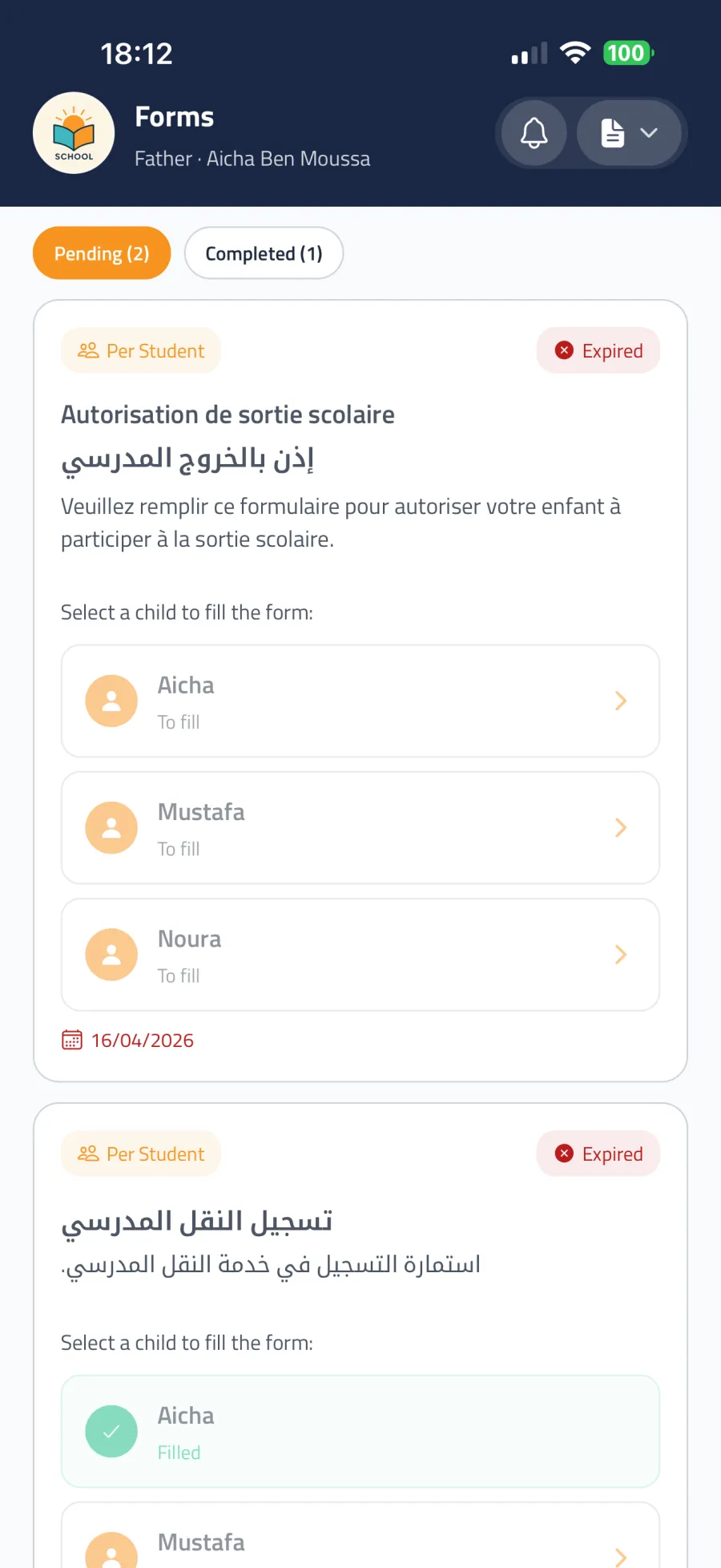
- Some forms are per child — fill one response for each of your children; others are one response per parent.
- Forms can have a deadline; urgent and overdue forms are flagged. If the school allows it, you can edit your response until the deadline.
- Questions can include text, numbers, choices, dates, yes/no, ratings, and file uploads.
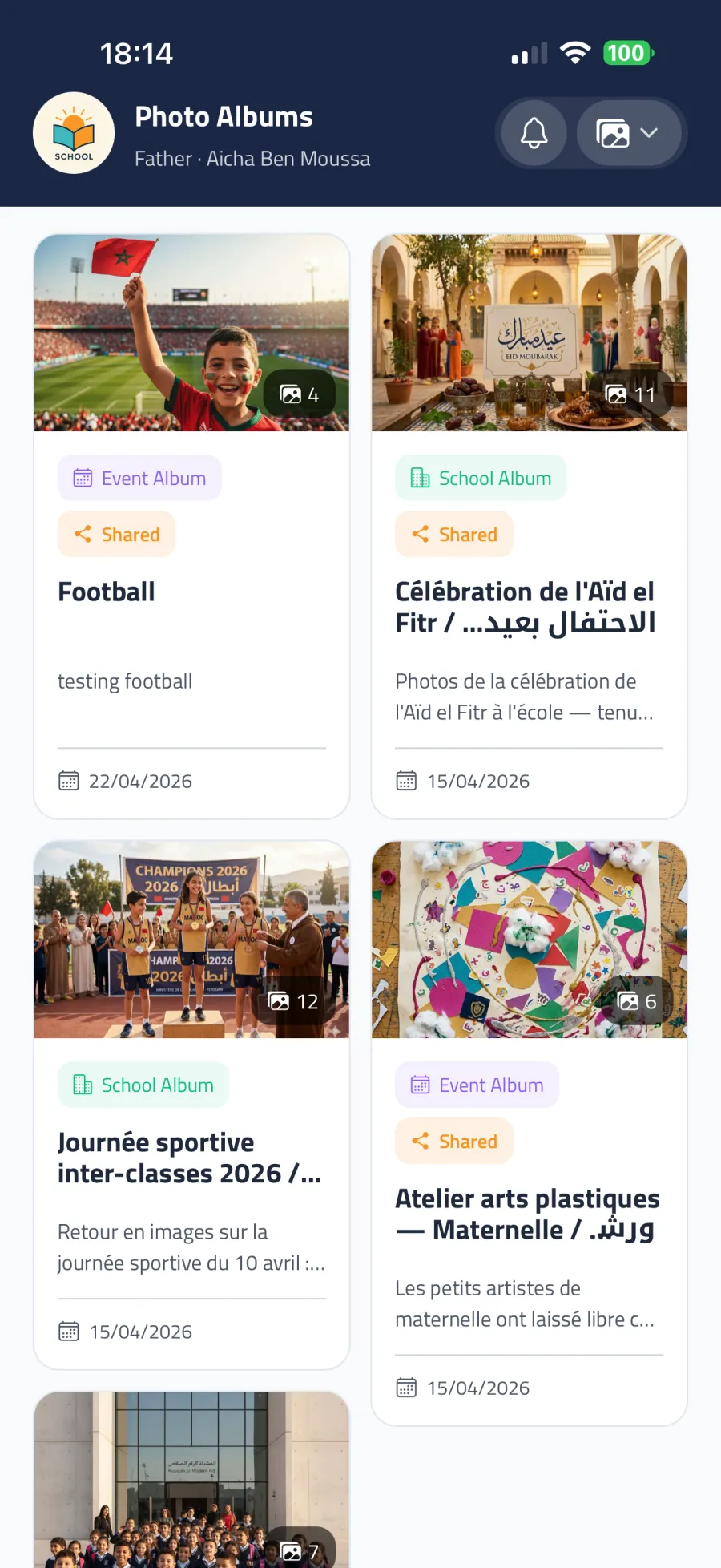
Photo albums
The Albums tab shows photo albums shared by the school — class albums, event albums, and school-wide albums. Open an album to browse and Download photos. Every photo is reviewed by the school before parents can see it.
Payments
The Payments screen shows your fee records: what has been paid (Total Paid) and what remains (Remaining), by fee type and month. Payments themselves are recorded by the school (cash, check, or bank transfer at the school office); Qismi gives you a transparent view of your account.
Uniforms
Order school uniforms directly in the app.
- Open Uniforms and tap New Order.
- Choose which child the order is for, then pick items, sizes, and quantities. Mandatory items are marked Required.
- Review the Order Summary and total, add optional notes, and tap Submit Order.
Track each order in Order History: Pending → Confirmed → Delivered.
Bus tracking
If your school uses Qismi bus management and your child rides the bus, the Bus Tracking screen shows the live trip while it is running: the bus's movement status (moving, stopped, idle), distance and estimated arrival, and your child's boarding status — On the Bus, Waiting, Absent, or Opted Out. When there is no active trip, the screen says so.
Learn & Progress for your child
The Learn and Progress tabs let you see the world through your child's eyes: pick a child in the dropdown to view their practice subjects, streak, accuracy, XP, and weekly activity. See Chapter 5 — The Learn Module for the full picture.