Getting Started
Qismi runs on iPhone and iPad, Android phones and tablets, and in any web browser. Your account works on all of them — sign in with the same email and password everywhere.
Get Qismi
The apps are available now — download for your device, or use the web version with nothing to install:
- iPhone & iPad — Download on the App Store
- Android phones & tablets — Get it on Google Play
- Any computer — open qismi.app in your browser
Your account and first sign-in
Accounts are created by your school. Depending on how the school set you up, you will receive either:
- An invitation link (sent by WhatsApp or email, or handed to you). Open it, check your name and role, choose a password (at least 8 characters), and tap Complete Registration.
- A ready-made account — sign in with the credentials your school gave you. Depending on your school's settings, Qismi may then ask you to set your own password (see below).
First sign-in: set your own password
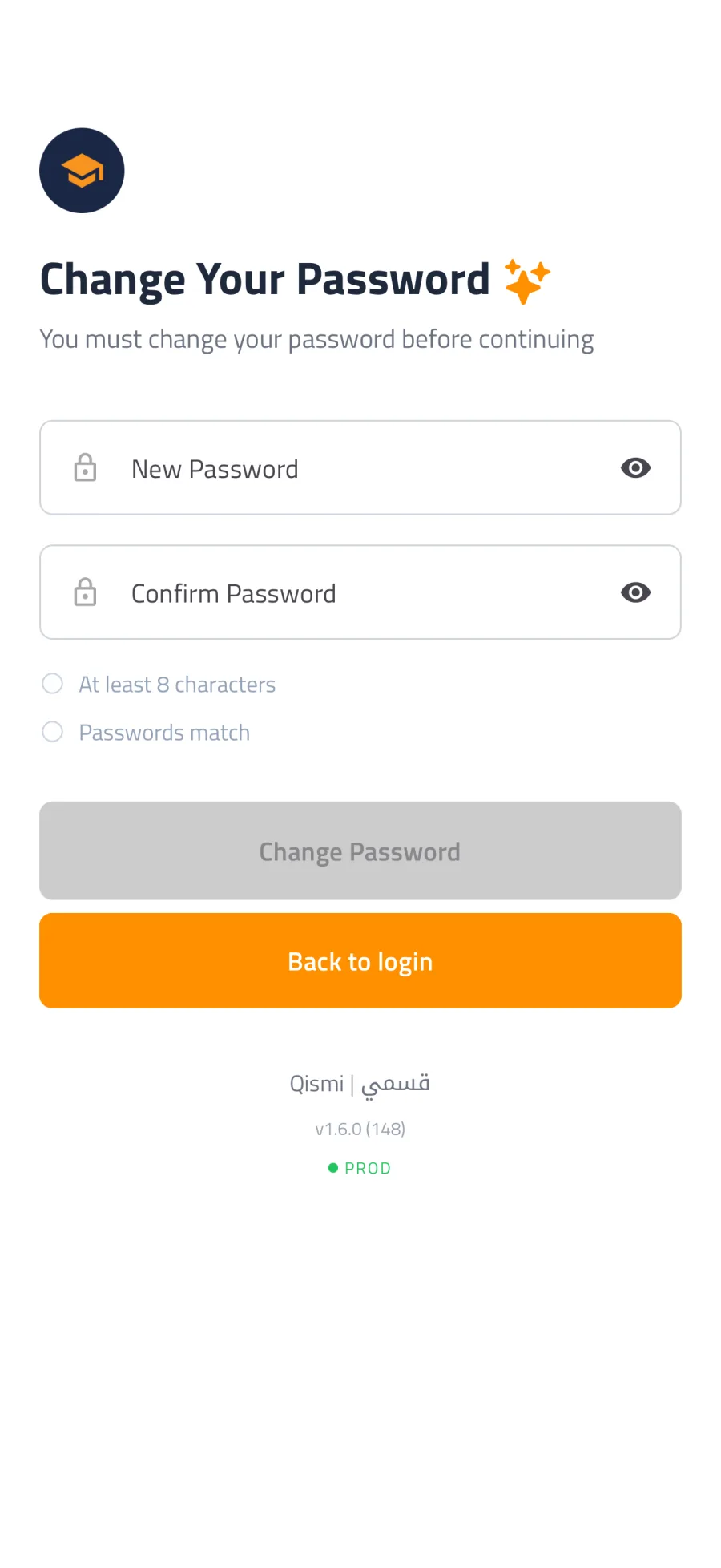
Depending on your school's settings and its security rules, Qismi may ask you to set a new password right after your first sign-in. If that happens, Qismi walks you through it — you can't skip this step.
- Sign in with the credentials your school gave you.
- Qismi opens the Change Your Password screen automatically.
- Enter a new password (at least 8 characters, and different from your current one) and confirm it.
- Tap Change Password. You go straight into the app, and you'll use this new password from now on.
Note
You'll only see this screen when your school requires it. If your account is already set up with your own password, you won't be asked again. Changing your password needs an internet connection.
Signing in
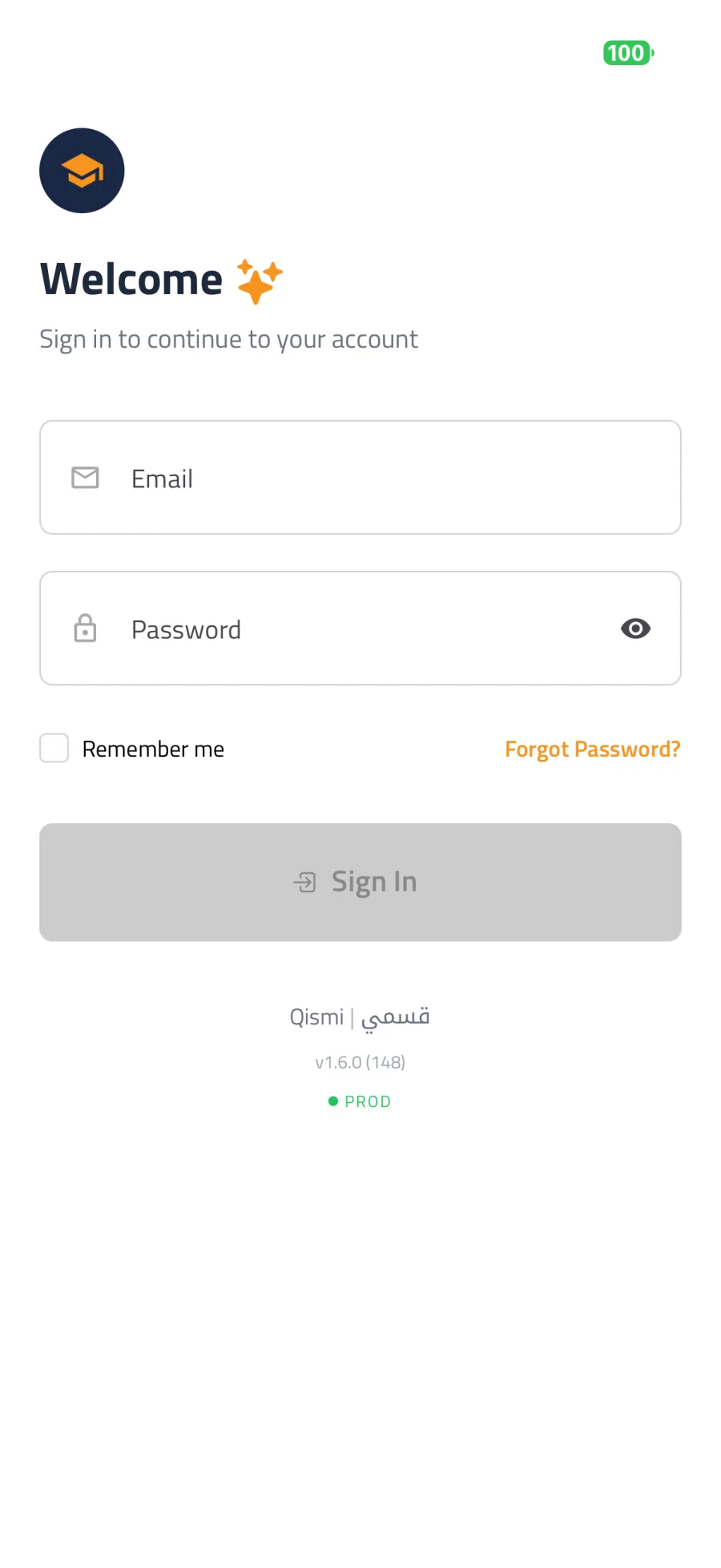
- Open Qismi and enter your Email and Password.
- Optionally turn on Remember me so you stay signed in on this device.
- Tap Sign In.
Forgot your password?
- On the login screen, tap Forgot Password?.
- Enter your email and tap Send Reset Link.
- Open the email and follow the link. The link expires after 1 hour — request a new one if it has expired.
- Choose a new password (at least 8 characters) and confirm it.
Note
This works only if your sign-in email is a personal inbox you can open. If your school manages your account's password, ask your school to reset your access instead — at your next sign-in, Qismi will guide you through choosing your own password (see First sign-in above).
Protecting the app with a PIN or biometrics
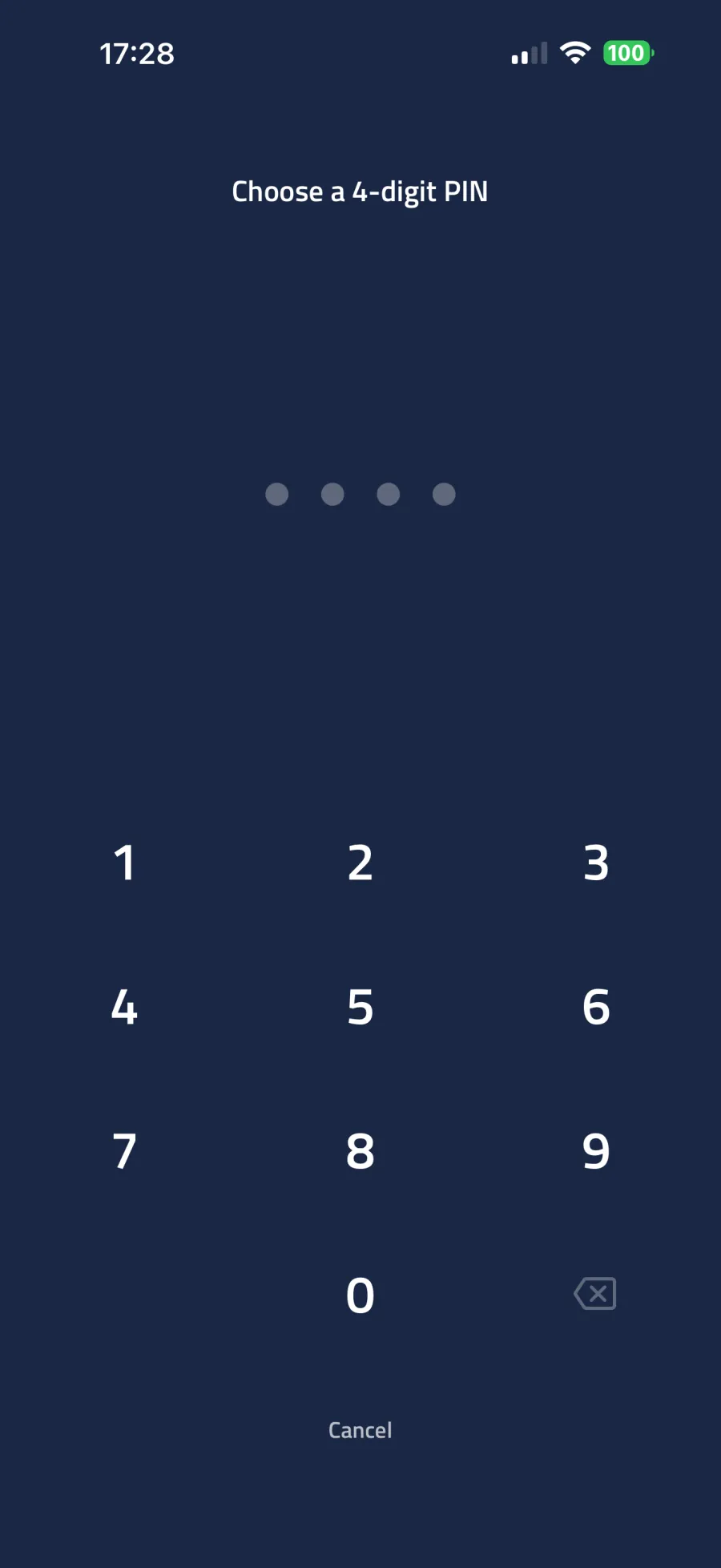
You can lock Qismi behind a 4-digit PIN, with optional fingerprint or face unlock.
- Open your Profile and find the Security section.
- Turn on PIN Lock and choose a 4-digit PIN, then confirm it.
- Optionally enable Fingerprint or Face Unlock to skip typing the PIN.
Important
After too many wrong PIN attempts the app locks temporarily. If you forget your PIN, tap Forgot your PIN? → Logout & reset and sign in again with your email and password.
Languages and Arabic (right-to-left) layout
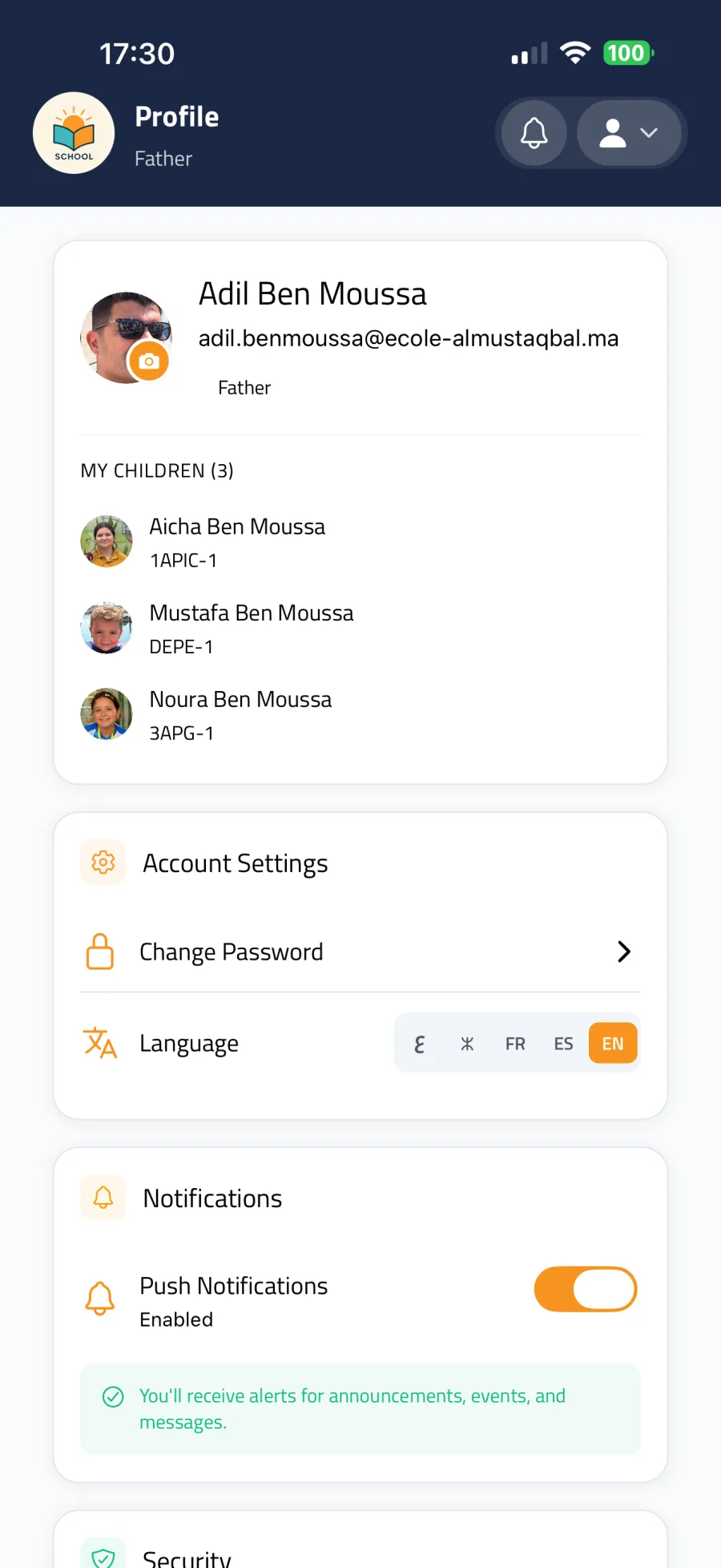
Qismi is fully multilingual: English, French, Arabic, Tamazight (ⵜⴰⵎⴰⵣⵉⵖⵜ), and Spanish. The language is auto-detected on first launch and can be changed at any time from the language switcher in your profile/settings. Your choice is saved automatically.
Note
Arabic uses a right-to-left layout. When you switch to or from Arabic on mobile, Qismi asks you to close and reopen the app so the entire layout direction can flip correctly.
Notifications
Push notifications keep you up to date on announcements, events, and messages. If notifications are disabled, a banner appears in the app — tap Enable and accept the system permission. You can check the status under Notifications in your profile.
The notification bell in the header collects everything that needs your attention (unread messages, new events, forms, and so on). Tap an item to jump straight to it, or use Mark all as read to clear the badges.
Working offline
Qismi is built for real-world connectivity. When your connection drops you will see a You're offline banner, and the app keeps showing the content it has already loaded — for example your cached timetable and previously loaded announcements.
- Works offline: reading already-loaded content, browsing the cached schedule.
- Needs a connection: sending messages, creating announcements or events, saving attendance, reporting an absence, changing your password, and all AI features.
- When the connection returns, Qismi shows You're back online and refreshes content automatically.
App updates and maintenance
- When a New version available prompt appears, update (or reload, on the web) to get the latest fixes. Occasionally an update is required before you can continue.
- During planned platform work you may briefly see a Maintenance in progress screen. No action is needed — tap Check again after a few minutes.
Need more help?
Can't find your answer here? Visit www.qismi.ma and use the contact page to reach the Qismi team.